Subbie Connect helps you find new opportunites by showing you which subbies are tendering on relevant projects, and by putting your products in front of subbies who are looking for them.
This guide covers both sides of the feature: how to find and contact tendering subbies, and how to promote your products to subbies on projects you care about.
You will need a Professional or Professional Plus licence to use Subbie Connect.
You can view a video guide below - note that Subbie Connect credits now reset on the 1st of each month:
How Subbie Connect works
Subbie Connect gives you two ways to generate leads from E1 projects.
Outbound leads. See a list of subbies that are tendering on a project and match your trades. Unlock their contact details with a credit, and reach out to offer a quote or details about the products you supply.
Inbound leads. Flag yourself as a specified or equivalent supplier on a project with a nominated contact person. Tendering subbies see your details and can reach out to you directly. You can see who has viewed your details, with no credit needed.
Generating outbound leads: viewing tendering subbies
How E1 identifies tendering subbies
E1 flags a subbie as tendering on a project when they:
- Add the project to their Watchlist as 'Interested', 'Quoting', or 'Quoted'
- Respond to a builder invitation as 'Quoting'
When the Subbie Connect feature is unlocked on a project, you also see when each subbie was last active, so you can prioritise the most engaged contacts.
Finding tendering subbies on a project
From the Project Details page, scroll to the Subcontractors section. You will see the number of tendering subbies who match the trades set up in your Company Profile.
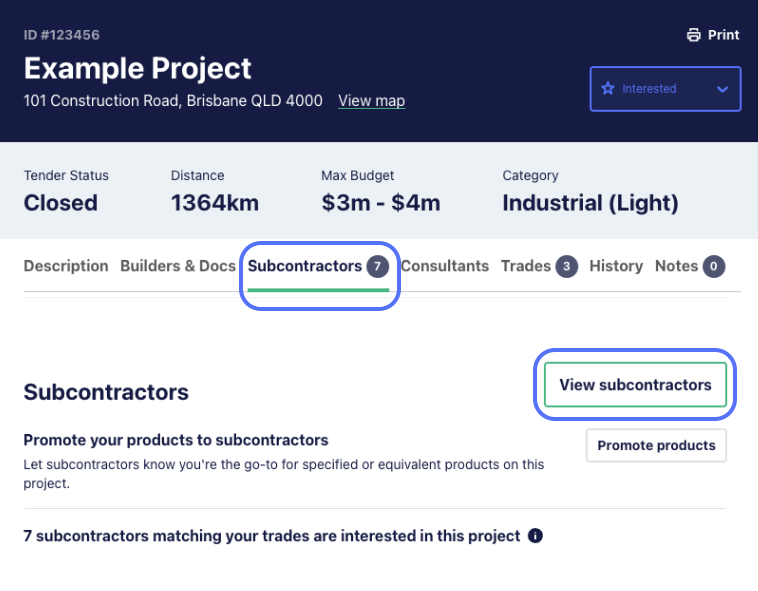
Click View Subcontractors to use one monthly credit and reveal the list. Each subbie shows their company name and the date and time they were last active.
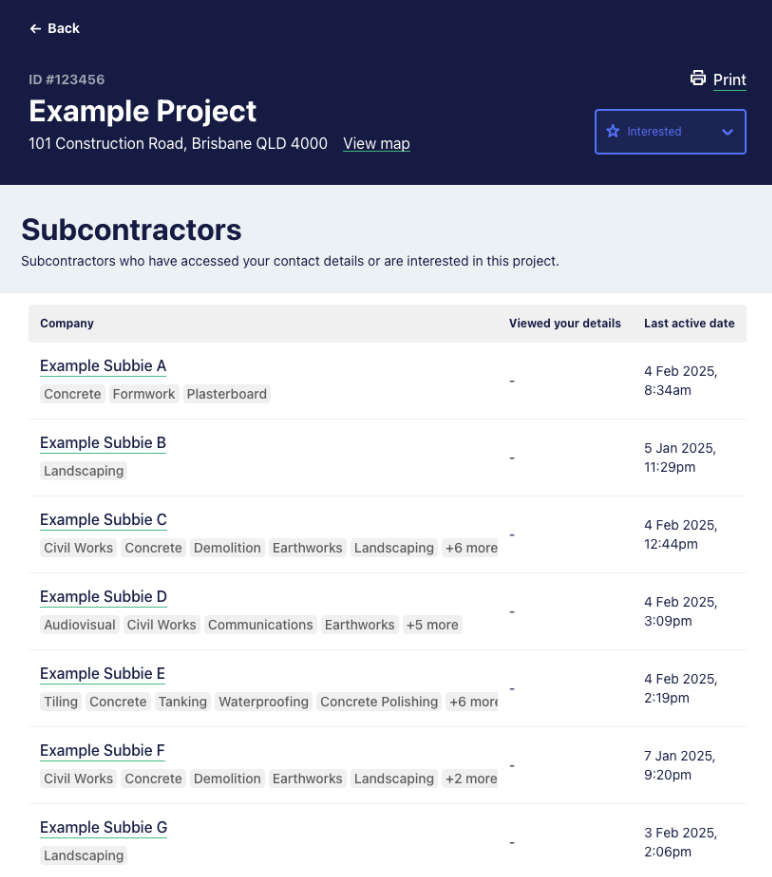
Click any company name to open their full company profile, where you can review their business details before making contact.
When you unlock the subbie list on a project, that project is automatically added to your Watchlist. See our Watchlist guide for more on how to use it.
Staying on top of new tendering activity
To get an email whenever a new subbie becomes active on a project you are tracking, set up daily Watchlist updates.
Go to Settings > My Profile > Email Preferences, then choose the frequency and projects you want updates for. See Email Preferences setup for the full instructions.
Generating inbound leads: promoting your products
Flagging yourself on a project
On any project, go to the Subcontractors section and click Promote products. You can nominate whether your products are:
- Specified
- Equivalent (you offer an equivalent to a specified product)
- Specified, and you offer an equivalent
Assign a contact person from your business and add any notes you want subbies to see.
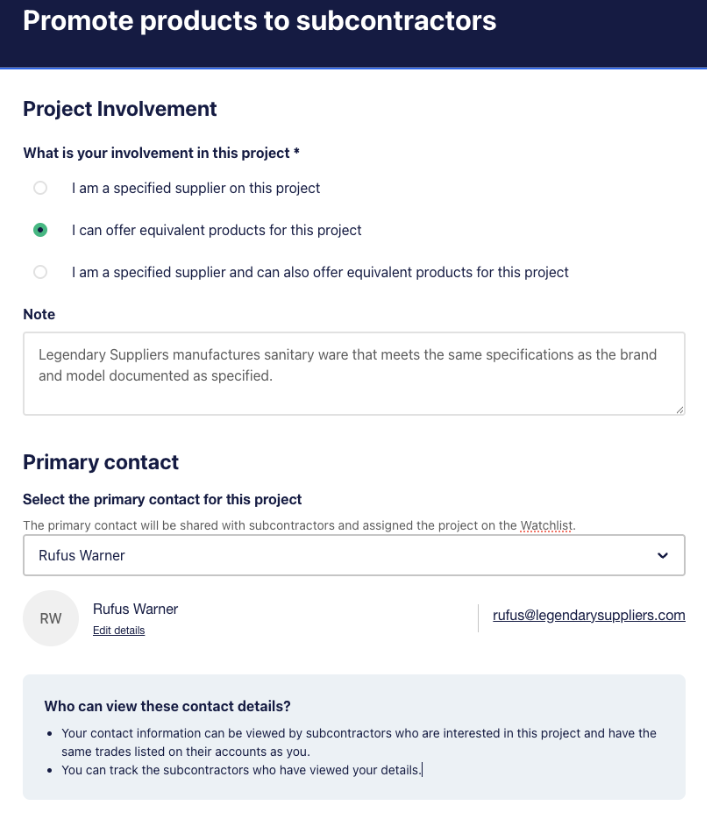
Once you click Promote products, the project is automatically added to your Watchlist so you can track it.
There are no limits on the number of projects you can promote your business on, and no credits are required for the Promote products feature.
What subbies see
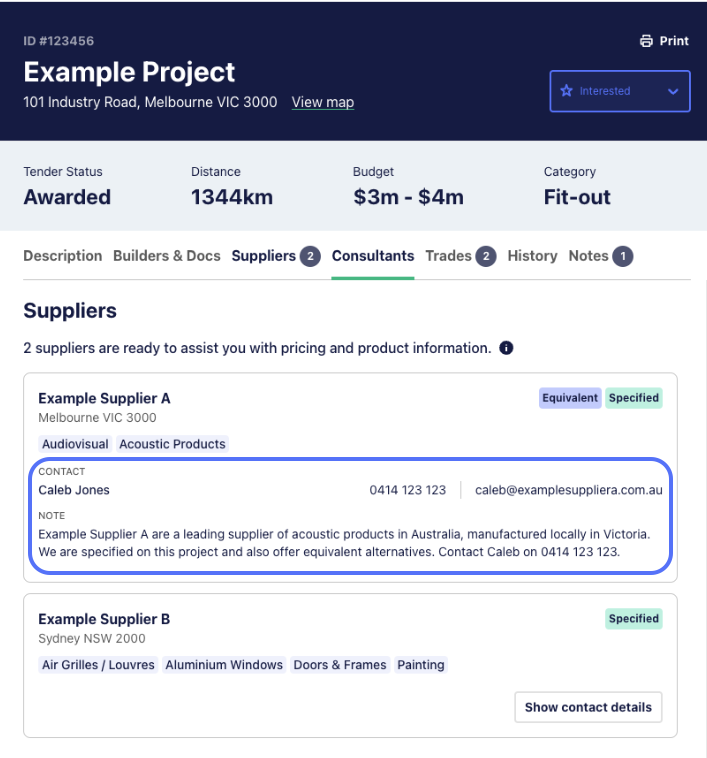
Subbies who match your trades and are interested in the project will see your company details in the project's Suppliers section on the subbie view of E1. They can see at a glance whether your products are specified, equivalent, or both.
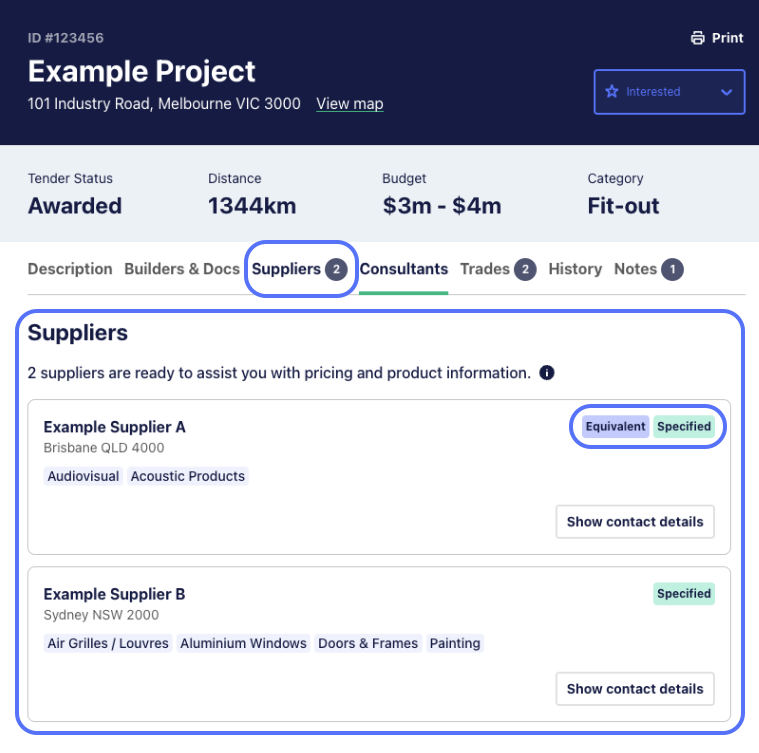
When they click Show contact details, your nominated contact and any notes appear.
Tracking who has viewed your details
You can see which subbies have viewed your contact details from two places.
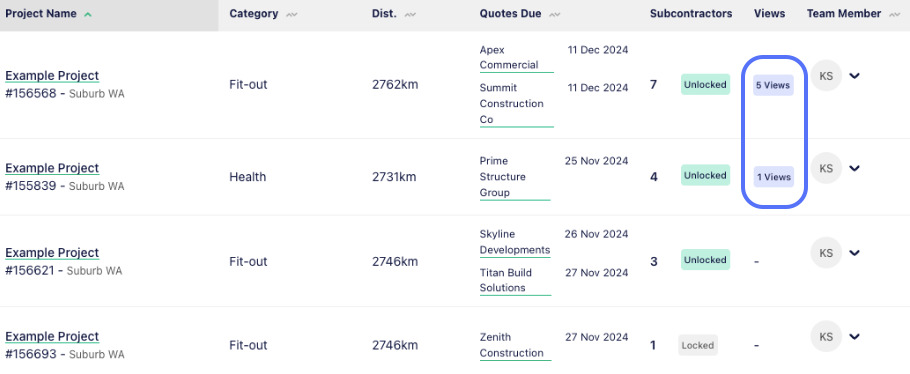
From your Watchlist, the Views column shows the number of subbies who have viewed your contact details for each project.
From a project's Project Details page, go to the Subcontractors section and click View Subcontractors to see who has viewed your details on that specific project.
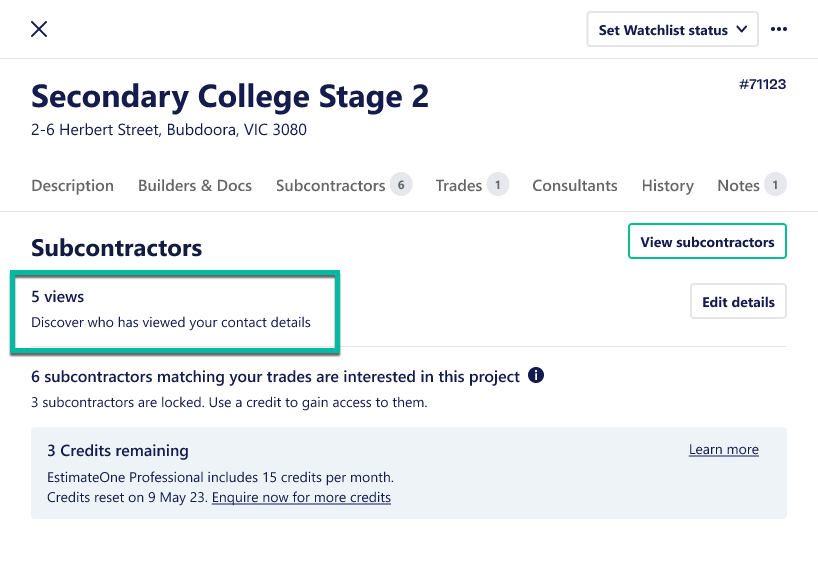
You do not use a credit to see subbies who have viewed your contact details. Other tendering subbies on the same project who have not viewed your details remain locked, and a credit is needed to unlock them.
To get email notifications whenever a new subbie views your details, set up daily Watchlist updates under Settings > My Profile > Email Preferences.
Editing or removing your promoted details
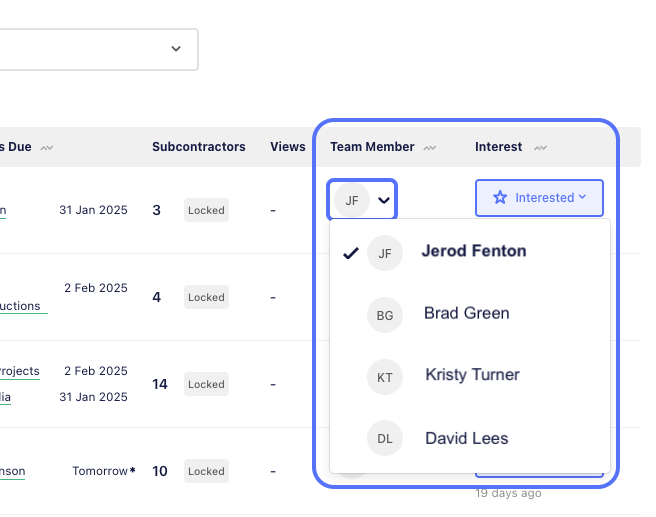
To change the primary contact for a project, go to your Watchlist, click the Team Member dropdown for that project, select a new contact, and confirm.
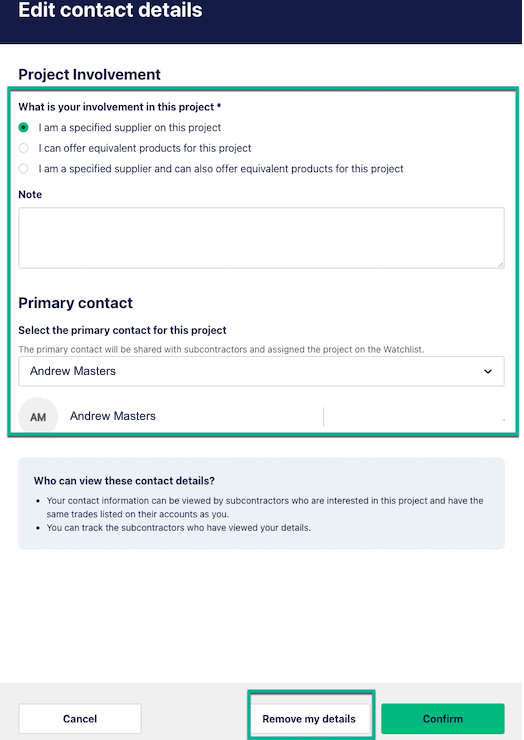
To change product details (specified, equivalent, or both) or update notes, go to the project's Project Details page, open the Subcontractors section, and click Edit details. Update what you need and click Confirm.
To remove yourself entirely from a project, go to the same Edit details screen and click Remove my details.
Credits and licensing
How many credits you get
Your monthly credit allocation depends on your licence tier and region.
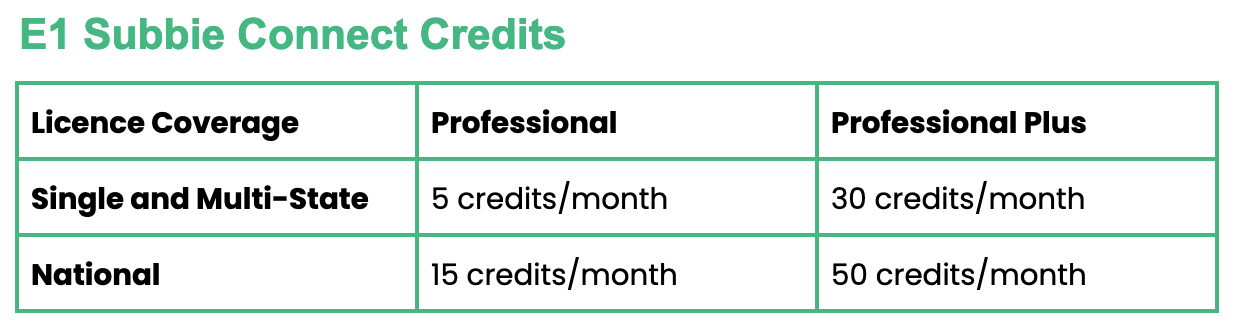
There are no limits on the number of projects you can promote your products on. Credits are only used to unlock outbound lead lists on projects.
Where to see your remaining credits
You can check your remaining credits in two places.
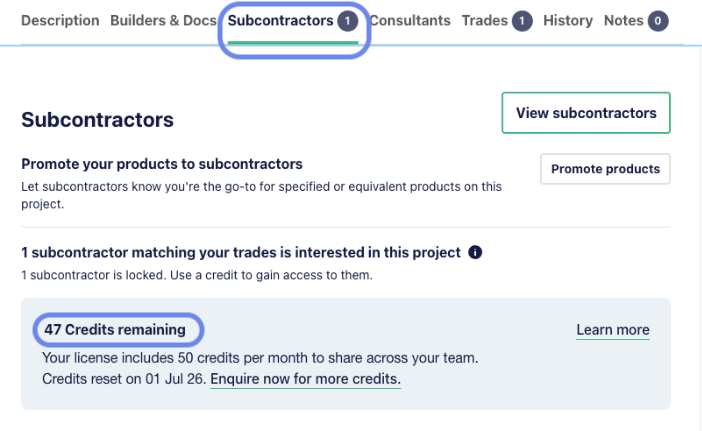
From any project page, look in the Subcontractors section.
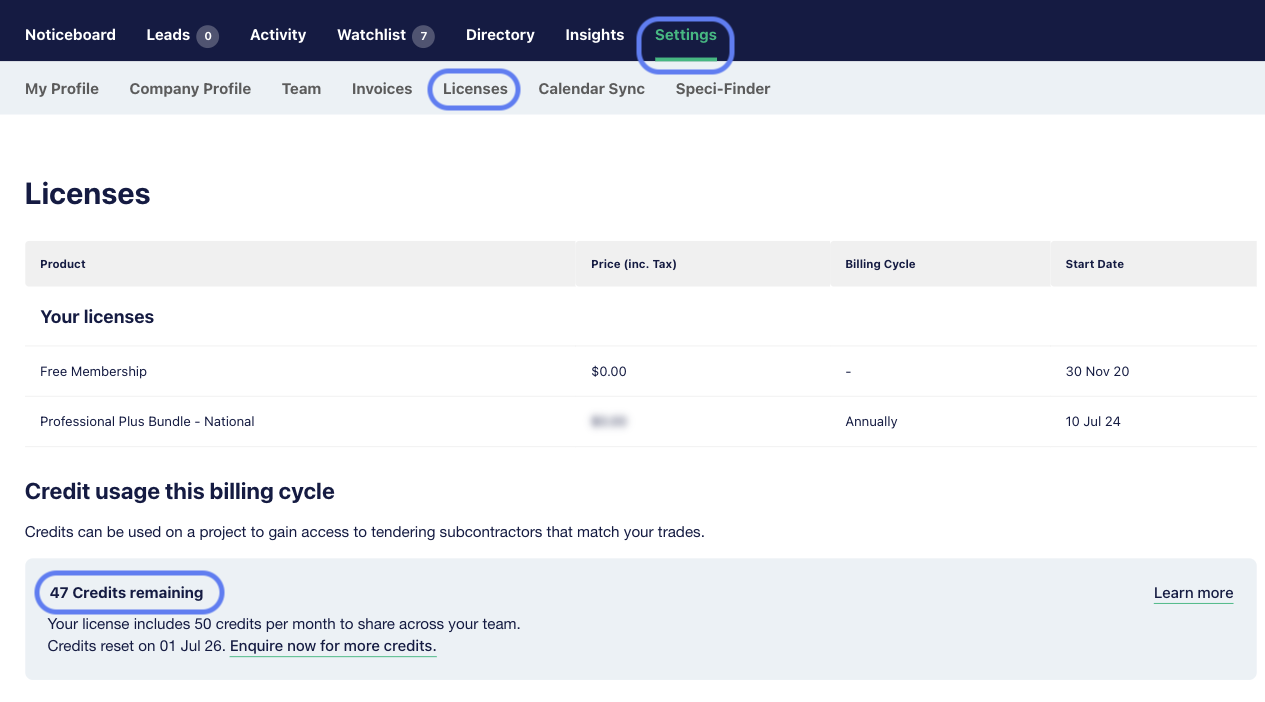
From your account settings, go to Settings > Licences.
When credits reset
Credits reset on the 1st of each month, and unused credits at the end of a month do not roll over.
Getting more credits
If you are running out of credits regularly, the most efficient path is to upgrade from Professional to Professional Plus, which includes a higher monthly allocation along with other features.
You can also purchase additional monthly credit bundles on top of your existing licence. Get in touch with our team if you’d like to discuss your options, or head to our plan selection page to compare licences.
Audit trail: who unlocked what
To see who in your team has used credits and on which projects, go to Settings > Licences > Credits.
If you downgrade from Professional or Professional Plus
Only Professional and Professional Plus suppliers have access to Subbie Connect. If you downgrade:
- You lose visibility of tendering subbies on projects
- You lose visibility of subbies you previously unlocked
- Subbies stop seeing your product and company details on projects where you used Promote Products
If you re-subscribe later, we restore:
- Visibility of subbies you had previously unlocked
- Your product and company details on projects where you previously used Promote Products