This guide covers everything you need to submit and manage quotes on E1: where to find projects, how to send a quote to one or several builders, and how to track and revise what you've sent.
Watch a quick video walkthrough:
Finding projects to quote on
There are two ways to find projects:
- The Tender Noticeboard. Search for projects, click on a project name to open the project details, view or download documents, and submit from there. See Navigating the Tender Noticeboard for help with searching.
- Direct invitations from builders. If you've been invited, you can submit straight from the invitation. See Managing invitations with Leads for more.
Submitting your quote
You can send a quote to multiple builders at once, or to a single builder. The path you take depends on where you click in the project slider.
Send the same quote to all or multiple builders
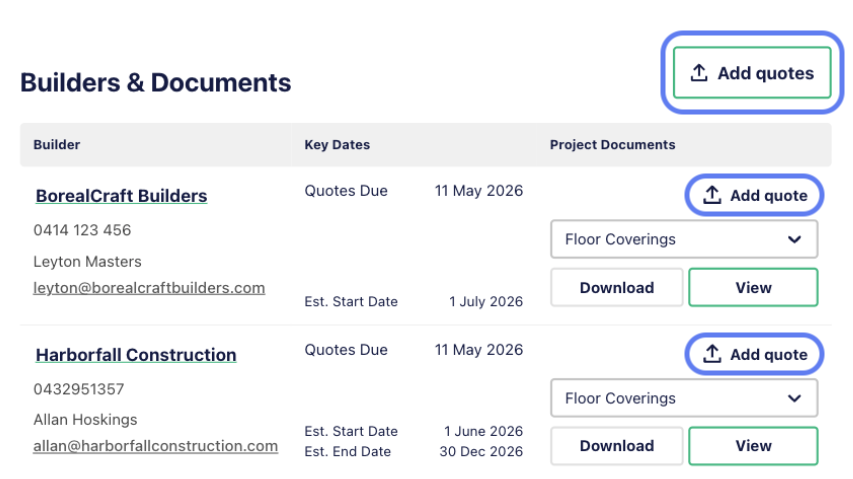
From the project details slider, click the Add Quotes button above the line next to Builders and Documents. You can then select which builders to send the quote to. Each builder only sees what's sent to them; no one has visibility on other builder quote activity.
Send a quote to one specific builder
From the project details slider, click the Add Quote button in line with that builder's name. Alternatively, if you've received an invitation, clicking the quote button from the invitation automatically sends it to that builder only.
Filling out the quote form
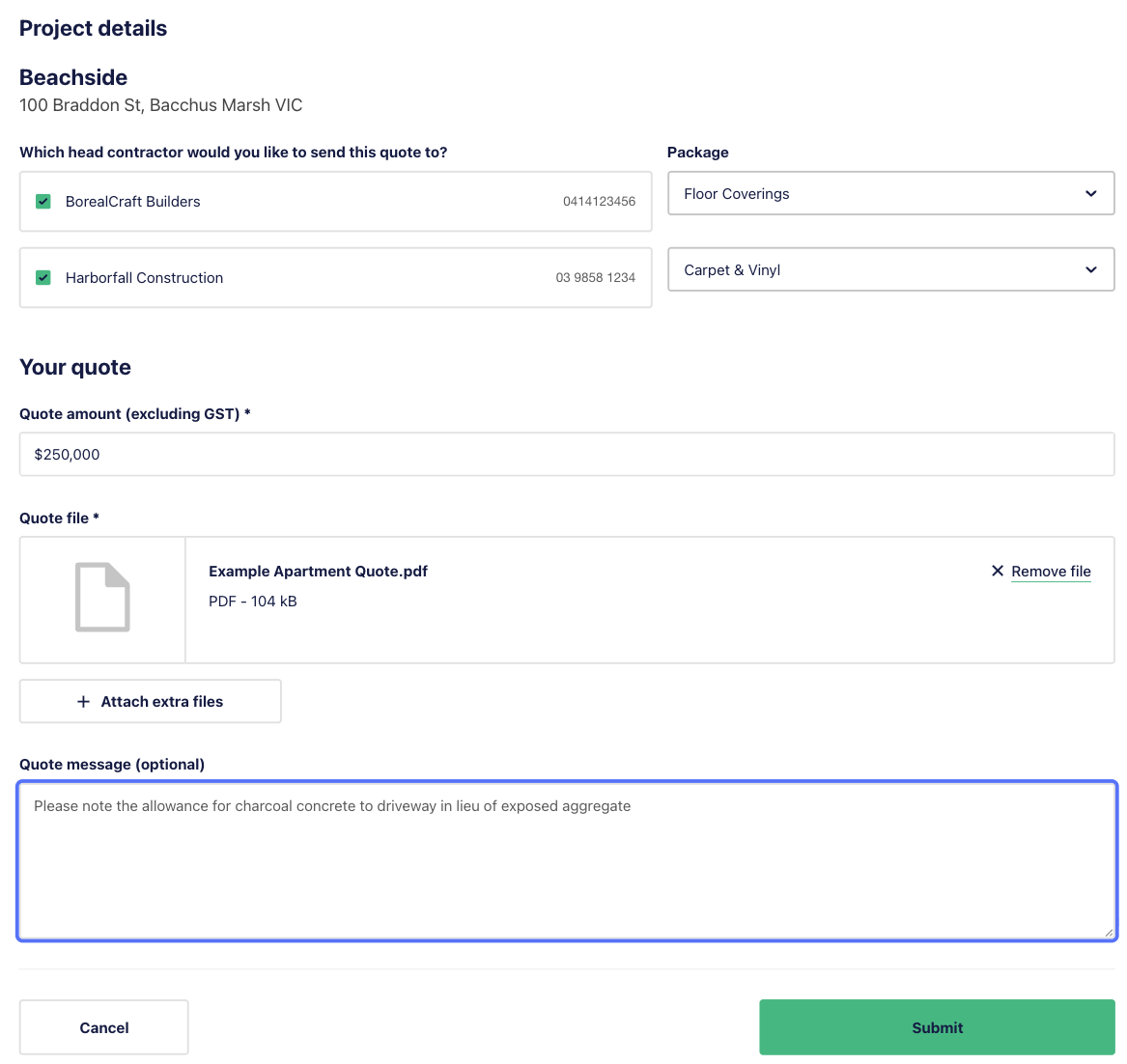
Once you click either button, you'll land on the Quote form page. Complete the following:
- Select the builder(s) and package. Pick which builders you want to quote, then choose the relevant package from the dropdown. If the exact package isn't listed, you can specify this in the Quote message section.
- Add the total amount of your quote, excluding GST. This field is mandatory.
- Upload your quote documents in the Quote file field. This field is mandatory.
- Add an optional message with any clarifying details, if needed.
- Click Submit.
What happens after you submit
When you click Submit:
- E1 emails the quote to each selected builder, with your file as an attachment.
- The quote is also added to their E1 portal under the project details page.
- A Quoted status appears on the Lead
- All quotes can be viewed, revised or deleted in the Quotes tab.
Managing your submitted quotes
You can manage your quotes from the Quotes tab under Activity.
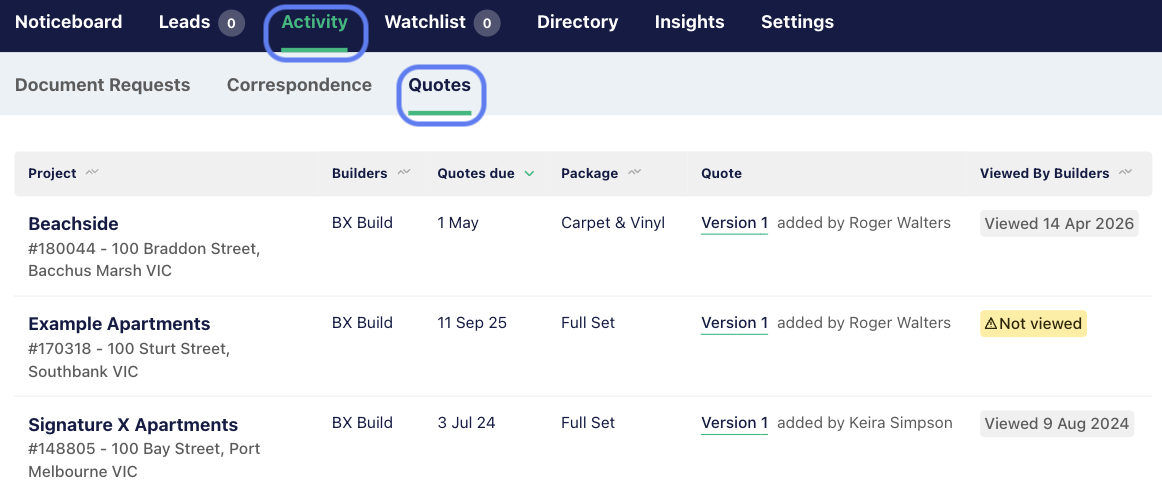
The Viewed By Builders column shows whether any builders have received and viewed your quote, along with a date stamp.
Click the Version reference to open the quote details. From here, you can:
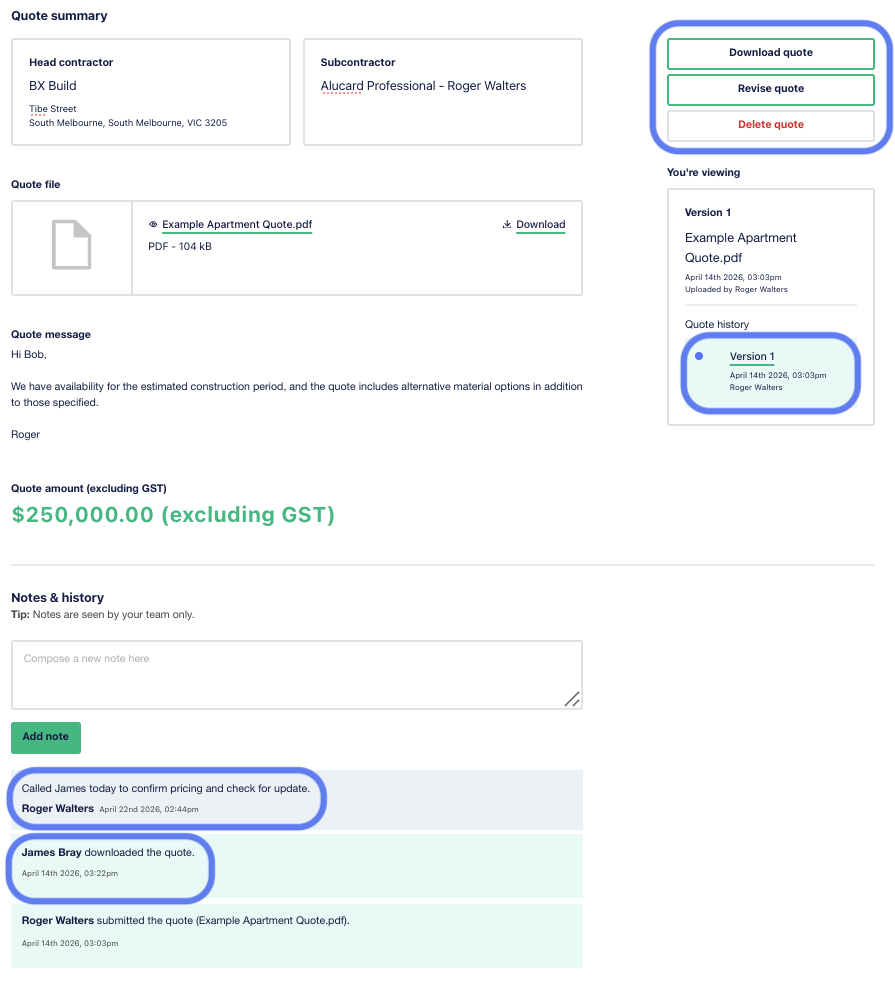
Download, revise, delete a quote or add an internal note.
Use the Download, Revise, and Delete buttons in the top right of the quote form.
- If you revise a quote, the builder has both the original and the revised version. Make it clear which is the updated one.
- If you delete a quote, it's removed from E1, but the builder may have already saved a copy locally. Contact them directly to confirm you're withdrawing it.
- Quotes submitted via an off-platform email can't be deleted from the platform. Contact the builder directly in this scenario.
View quote history and revisions
The Quote summary section displays every submitted version, so if you've made revisions, you can see the original alongside any updates.
Leave internal notes for your team
The Notes & history section is for internal notes between you and your team. These are completely private; the builder doesn't see them. You can scroll to the bottom of the quote details page, or jump there via the Notes & history link at the top.
Track who's viewed your quote
Builders that have downloaded or viewed your quote are listed at the bottom of the page, with a date and time stamp showing who viewed it, and when.
Keep your Watchlist up to date
We recommend updating your Watchlist to Quoted as you go (this is currently a manual process), so you can track project progress alongside your submitted quotes.
Your Lead will automatically reflect the Quoted status.
FAQs
What do I do if my quote hasn't been viewed?
Reach out to the estimator listed on the project. Their contact details are on the project page.
Can I submit a quote after the due date?
Yes, E1 lets you submit past the due date, but builders are unlikely to be actively monitoring after the deadline.
Do I need an invitation to submit a quote?
No. However, for the quote feature to work you do need to have a Lead. This can be via a builder issued invitation, or you can generate one by viewing or downloading documents on a discovered project.
Can I send a quote to multiple builders at once?
Yes. Note that you do need to generate a Lead by interacting with the documents if you don’t have an invitation from all listed builders.
Use the Add Quotes button above the line on the project slider, then select the builders you want to send to. Each builder only sees what's been sent to them.
Can I send personalised messages to each builder?
Yes, but you'll need to submit one builder at a time. The optional message field on the quote form is visible to every builder when you perform a multi-builder quote in a single submission.
Can I revise a quote after submitting?
Yes. From the Quotes tab, open the quote and click Revise. The builder has both the original and the revised version, so make it clear which is the updated one.
Can I delete a submitted quote?
Yes, with two caveats:
- Once deleted, the quote is removed from E1, but the builder may have downloaded a copy. Contact them directly to confirm the withdrawal.
- Quotes submitted via email can't be deleted from the platform. Contact the builder directly in that case.
What do internal notes look like to the builder?
They don't see them at all. The Notes & history section on a quote is private to your team.
How do I follow up on a quote?
If it hasn't been viewed yet, reach out to the estimator listed on the project. If it has been viewed, the bottom of the quote details page shows who viewed it and when; reach out to that person directly.